Your iPhone screen, on the TV.
With TVkip Pro, your iPhone's screen appears on the TV over your home Wi-Fi, a few seconds behind, with nothing going through the internet. Google TV, Chromecast and Roku play the stream directly; most other TVs show it in their web browser.
TVkip is an independent app. TV brand names on this page only describe compatibility; TVkip isn't affiliated with or endorsed by any TV maker.
What it does
- Mirrors your whole screen: photos, your own videos, games, presentations, web pages.
- Three qualities: Smoother (720p, 24 fps) for older TVs, Balanced (720p, 30 fps) for most, and Sharper (1080p, 30 fps) for strong Wi-Fi.
- Sound stays on your iPhone, so picture and sound stay in sync.
- Stays on your network. The stream goes from your iPhone to the TV over your Wi-Fi.
Which TVs show the stream
TVs that can't play a live stream from the app show it in their web browser instead, called compatibility mode. If your TV has AirPlay, Screen Mirroring in Control Center has less delay.
| TV | How the TV shows it |
|---|---|
| Samsung | In the TV's web browser |
| LG webOS | In the TV's web browser |
| Roku | Plays it directly |
| Google TV / Android TV, Chromecast | Plays it directly |
| Sony BRAVIA | In the TV's web browser |
| Vizio | In the TV's web browser |
| Hisense VIDAA | In the TV's web browser |
| Fire TV | In the TV's web browser |
| Apple TV | Use AirPlay Screen Mirroring in Control Center |
Start mirroring
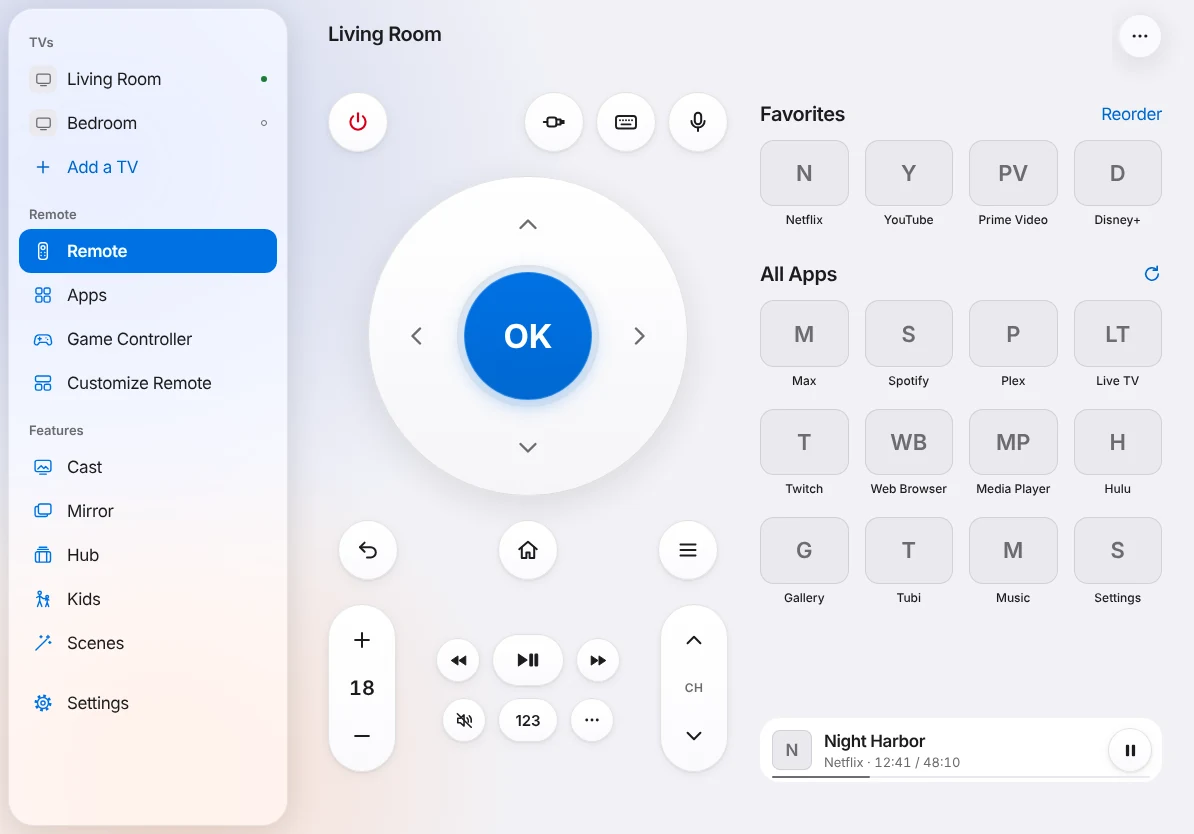
- Open the More menu on the remote and choose Mirror.
- Pick a quality.
- Tap Start Mirroring. iOS shows its broadcast panel: choose Mirror to TV and Start Broadcast.
- The TV plays your screen, a few seconds behind. If it can't start the stream by itself, the app shows an address to open in the TV's web browser.
You can also start from Control Center: touch and hold Screen Recording, choose Mirror to TV, then Start Broadcast. See Mirroring your iPhone screen.
What's free, and what Pro adds
Screen mirroring is part of Pro. Pro Yearly is US$14.99 a year with a 14-day free trial, so you can try it on your TV first; Pro Lifetime is US$29.99 once.
Free: casting photos and videos from your library, 10 a day, which often looks sharper than mirroring for photos.
Honest limits
- Netflix, Disney+, Prime Video, Apple TV+ and most paid streaming apps block mirroring with copy protection, from any phone; you'll see a black screen. Open those apps on the TV itself (why).
- It's a few seconds behind your iPhone, so it suits photos and presentations better than games.
- iOS pauses mirroring while your iPhone is locked; the TV keeps the last picture.
- Notifications show on the TV too. Turn on a Focus if you like.