TV volume, right on your Lock Screen.
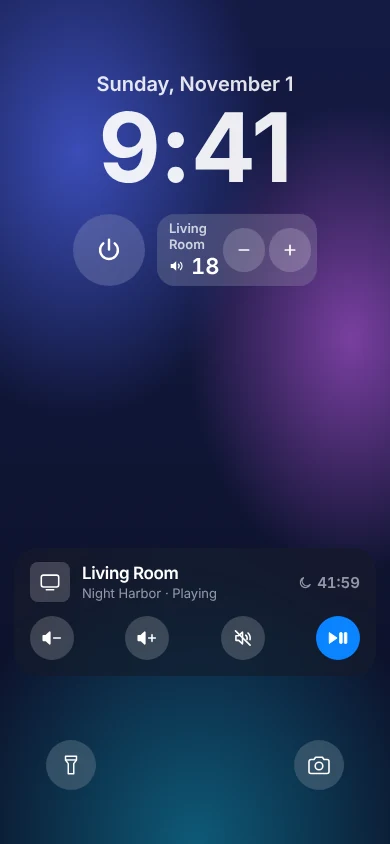
TVkip's TV Volume widget sits on your Lock Screen and Home Screen, so you can turn the TV up, down or off without unlocking or opening the app. With Control Center, the Action button, the Live Activity and your iPhone's own volume buttons, it's all free.
TVkip is an independent app. TV brand names on this page only describe compatibility; TVkip isn't affiliated with or endorsed by any TV maker.
What you get
- TV Volume widget on the Lock Screen and the Home Screen: volume up, down and the current level.
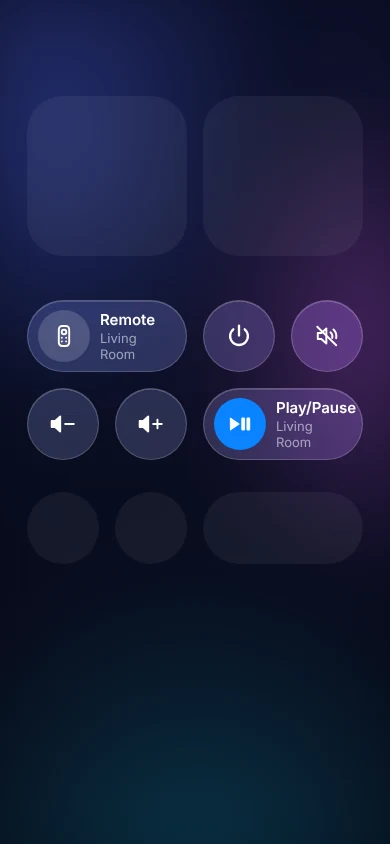
- Control Center controls: open the remote, power, mute, volume and play/pause, each one free.
- The Action button, on iPhones that have one: choose a TVkip control such as Play/Pause TV or TV Power.
- The Live Activity: while you use the remote, the TV's controls stay on the Lock Screen and in the Dynamic Island.
- Your iPhone's volume buttons: turn on Volume Buttons Control TV in TVkip's settings, and the side buttons change the TV's volume while the remote is open.
Which TVs it works with
The widget and controls send the same commands as the remote, so they work wherever the remote's volume keys do.
| TV | Volume and power | Shows the level |
|---|---|---|
| Samsung | 2016 on; 2010–2013 volume keys and power off | 2016 on |
| LG webOS | Yes | Yes |
| Roku | Roku TVs; players over HDMI-CEC | No |
| Google TV / Android TV | Yes | TVs; not boxes |
| Sony BRAVIA | Yes | Yes |
| Vizio | Yes | Yes |
| Hisense VIDAA | Up to 2023; basic mode where the TV allows it | Where the TV reports it |
| Fire TV | Smart TVs; sticks over HDMI-CEC | Fire TV smart TVs |
| Apple TV | Sleep and wake; volume when the Apple TV controls the TV's volume | No |
Set it up
- Lock Screen: touch and hold the Lock Screen, tap Customize > Lock Screen, then add TVkip's TV Volume widget.
- Home Screen: touch and hold, tap Edit > Add Widget, search for TVkip and pick TV Volume.
- Control Center: open Control Center, tap +, then Add a Control, and search for TVkip.
- Action button: iPhone Settings > Action Button, swipe to Controls and choose a TVkip control.
Widgets and controls use the TV you used last; edit a widget to pick another. See Widgets, Control Center, Live Activity and the Action button.
What's free, and what Pro adds
Free: the TV Volume widget on the Lock Screen and Home Screen, every Control Center and Action button control, the Live Activity and Dynamic Island, and the volume buttons, for up to two TVs.
Pro adds all other widgets and layouts: the remote and favorite-apps widgets, the other Lock Screen widgets and StandBy. Pro Yearly is US$14.99 a year with a 14-day free trial; Pro Lifetime is US$29.99 once.
Honest limits
- Some TVs and streaming players don't report their volume, so the widget changes it in steps without a number.
- While the volume buttons control the TV, your iPhone's own media volume stays at 50%.
- Turning a TV on from the widget needs the TV's wake setting (how to turn your TV on).